Update and export leads
Apply an action to selected leads or download the current lead list.
Use table selection when the same action applies to several leads.
Update selected leads
Open Leads in Table view.
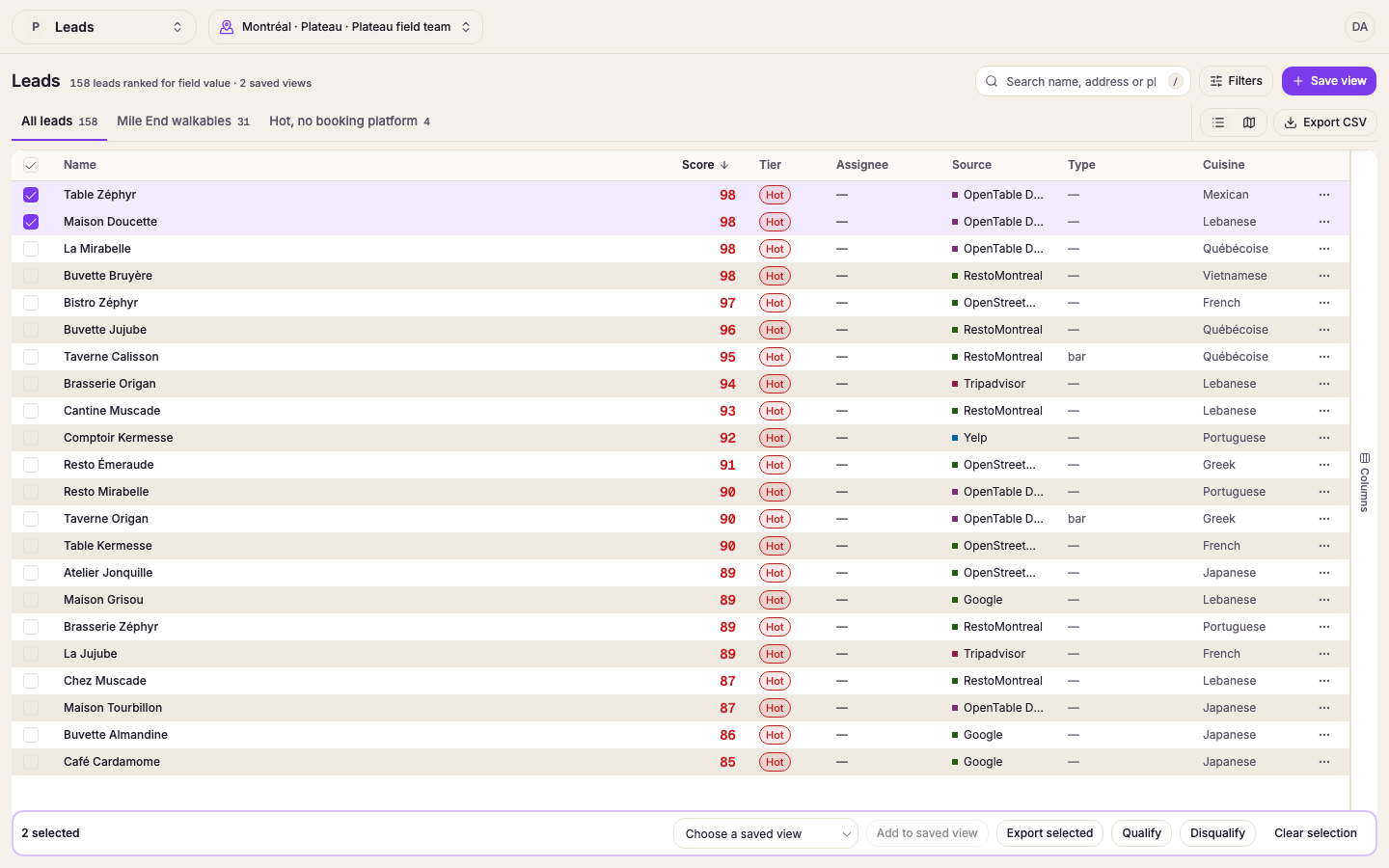
Select the checkbox beside each lead, or the checkbox in the header row to take the whole page.
In the selected-leads bar, choose the action you need.
Wait for the confirmation message before clearing the selection.
Available actions can include qualification changes, assignment, adding to a saved view, adding to a route, and Export selected.
Export the current result
Apply the search, filters, and saved view you want included.
Select Export CSV.
Open the downloaded CSV file from your browser’s downloads.
Use Export selected when you need only the checked rows. Use Export CSV when you need every lead in the current result, across every page. The file follows the search, filters, and saved view you have open, so a view with no leads has nothing to export and the button stays off. Rows come in a fixed order, not the order of the table.