Manage saved views
Save a useful lead filter or keep a hand-picked group of leads.
A saved view gives your team a repeatable lead list.
Save the current filters
Open Leads and apply the filters you want.
Select Save view.
Enter a View name. The dialog lists the filters the view will capture, so you can check it before saving. A saved view never carries the search box. If no filters are on, the view starts empty. Add leads to it from a lead, a table selection or a map pin.
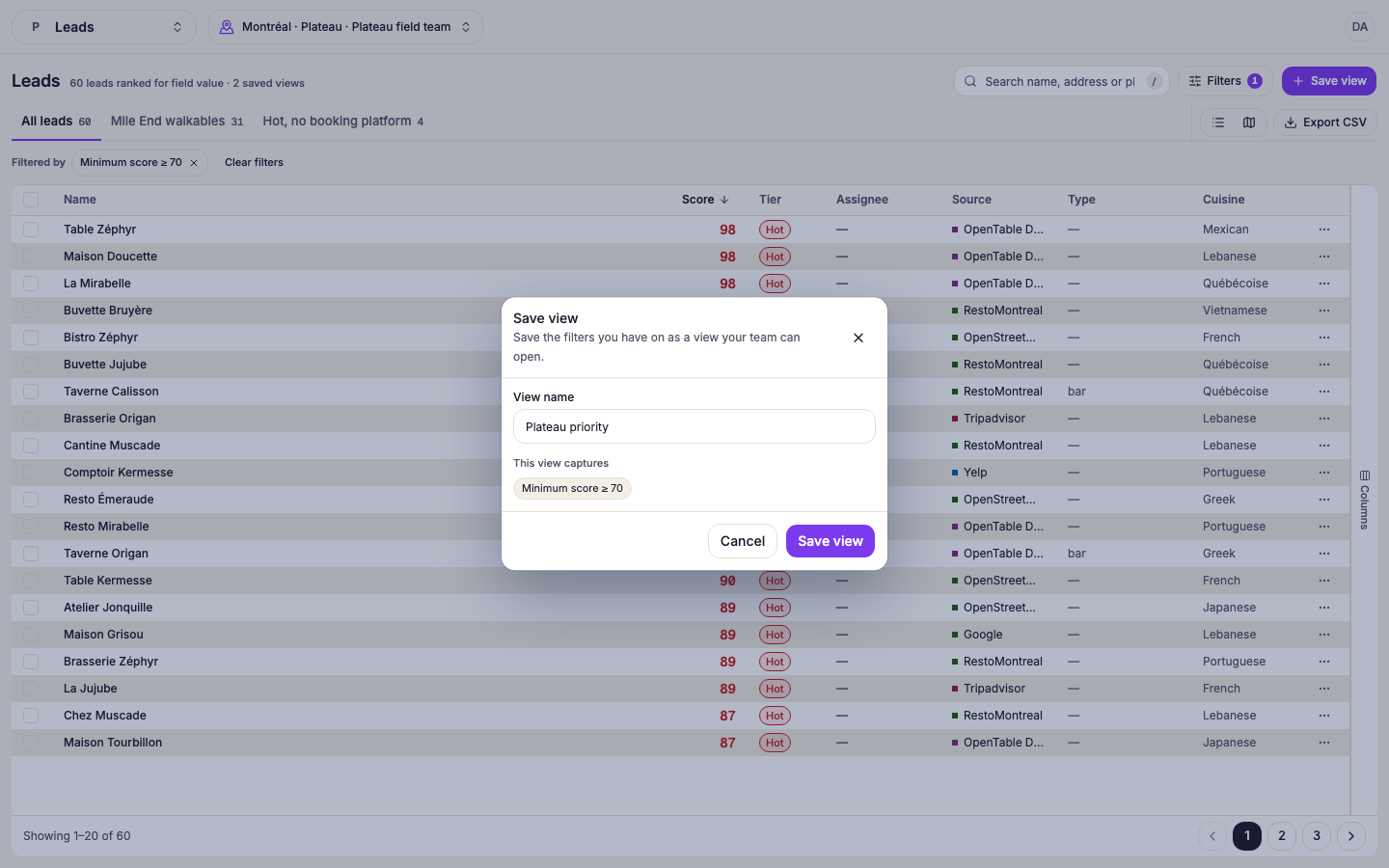
Select Save view in the dialog.
To change it later, open Saved views, choose the view, adjust the filters, and select Update view.
Keep a hand-picked list
You can also add individual leads to a saved view. This membership is separate from the filter definition. To start a hand-picked list from nothing, select Save view with no filters on, then add leads to it.
Open a lead or select leads in the table.
Select Add to saved view.
Choose an existing view, or select Create a saved view with this lead. A view created this way starts with that lead and saves no filters, even when filters are on. The dialog names the filters it leaves out, because any of them could hide the lead the view was made for.
When a lead belongs to the active saved view, Active saved-view membership appears in its detail. Select Remove to remove only that lead from the view.